LoopMeeting – Configure NFC
Back
Here you will find information on how to configure the option to instantly book a meeting on the panel with a NFC card.
All LoopMeeting LM-105xT and LM-805xT panels are equipped with NFC reader.
(Panels manufactured 2021 or later)
The NFC can be enabled by configureing the integration in LoopMeeting configuration console and MS365.
NFC booking is currently only supported on panels integrated with MS365.
If a user books with their NFC card the booking on the panel will be done with the users account.
and not with the general service account.
Note:
Credit/Debit cards can NOT be used for booking with NFC.
The reason is that these types of cards change serial number for each scan as a security feature.
Enable NFC
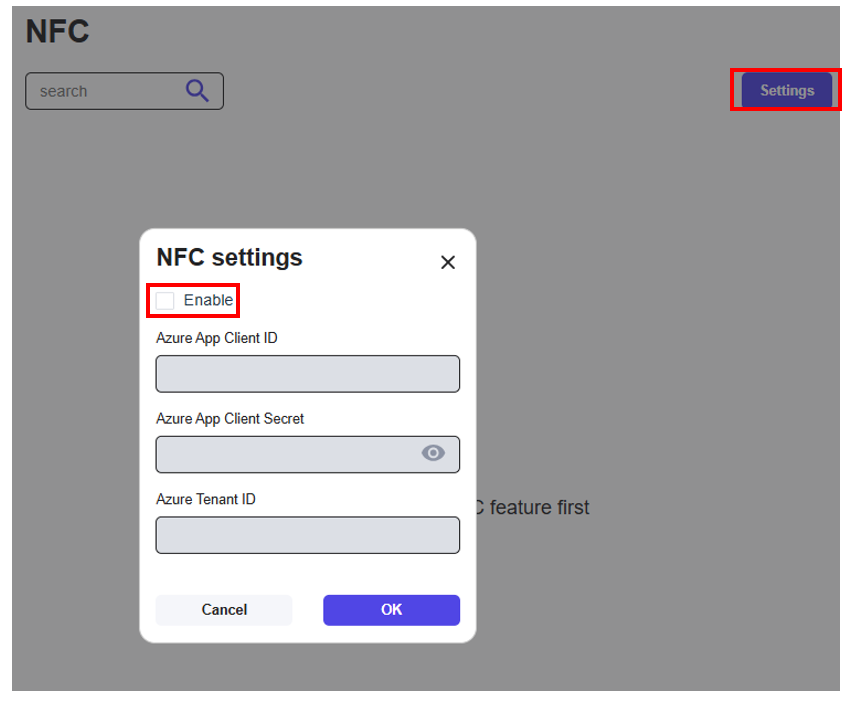
In the LoopMeeting console under menuitem “NFC” you will find the configuration options.
To enable the feature, select “settings” and configure the options as described in this guide.
Configure Entra ID Enterprise App
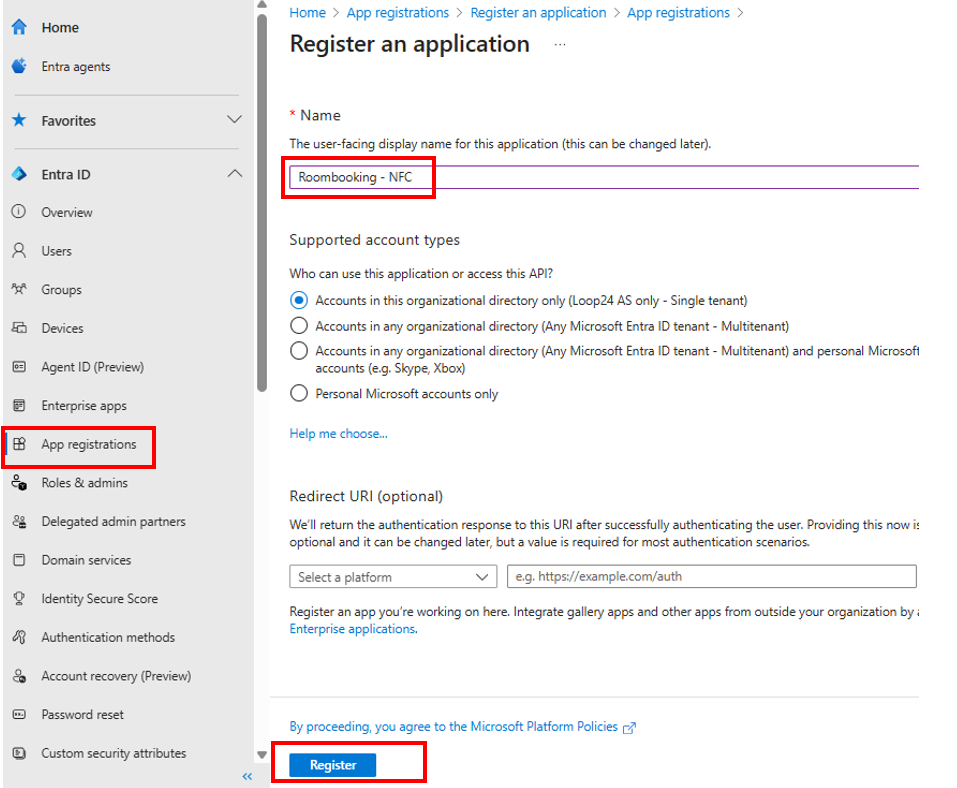
In Entra ID add a new App registration.
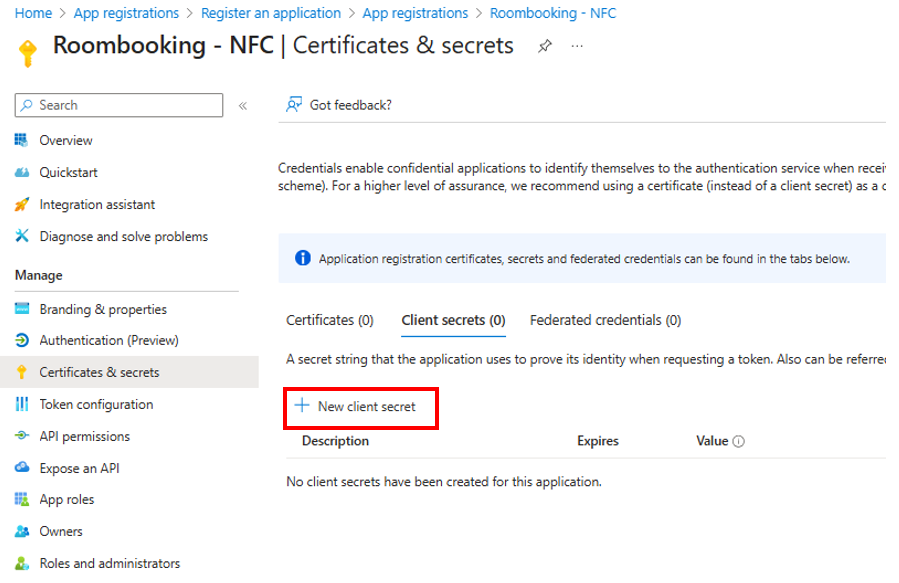
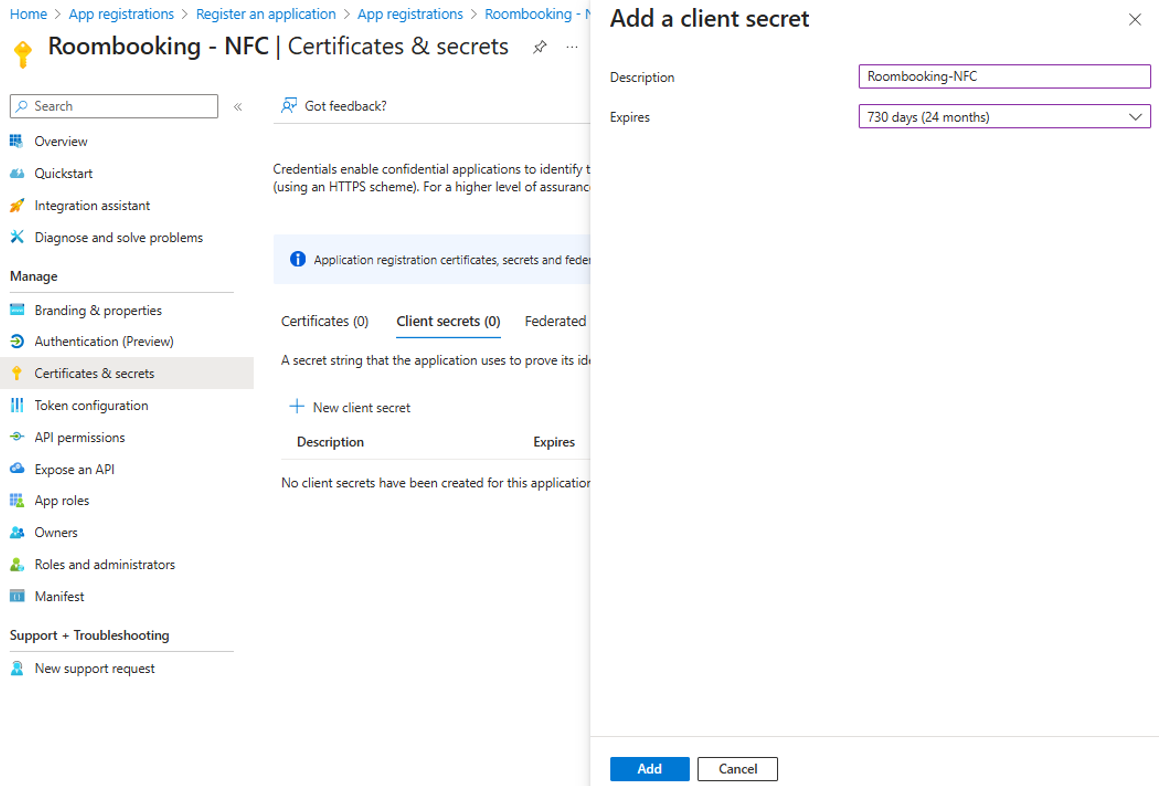
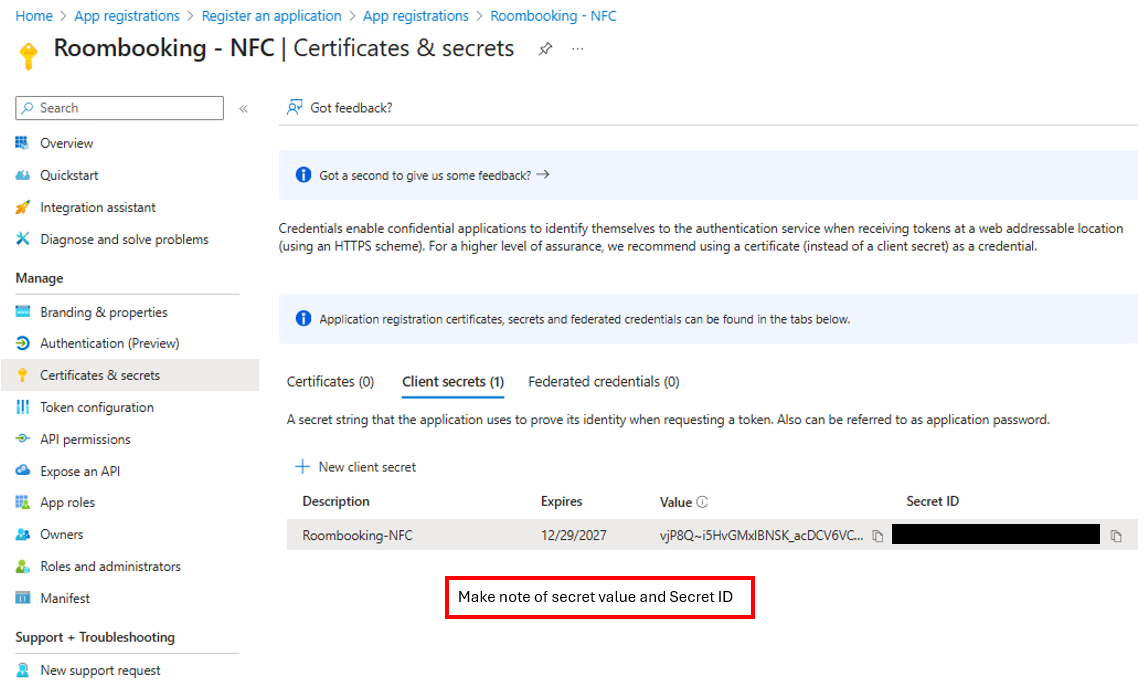
Add client secret, and fill in the secret in NFC settings configuration.
We recomend to set it to max expiry time – 24 months.
Add API permissions to the Enterprise App
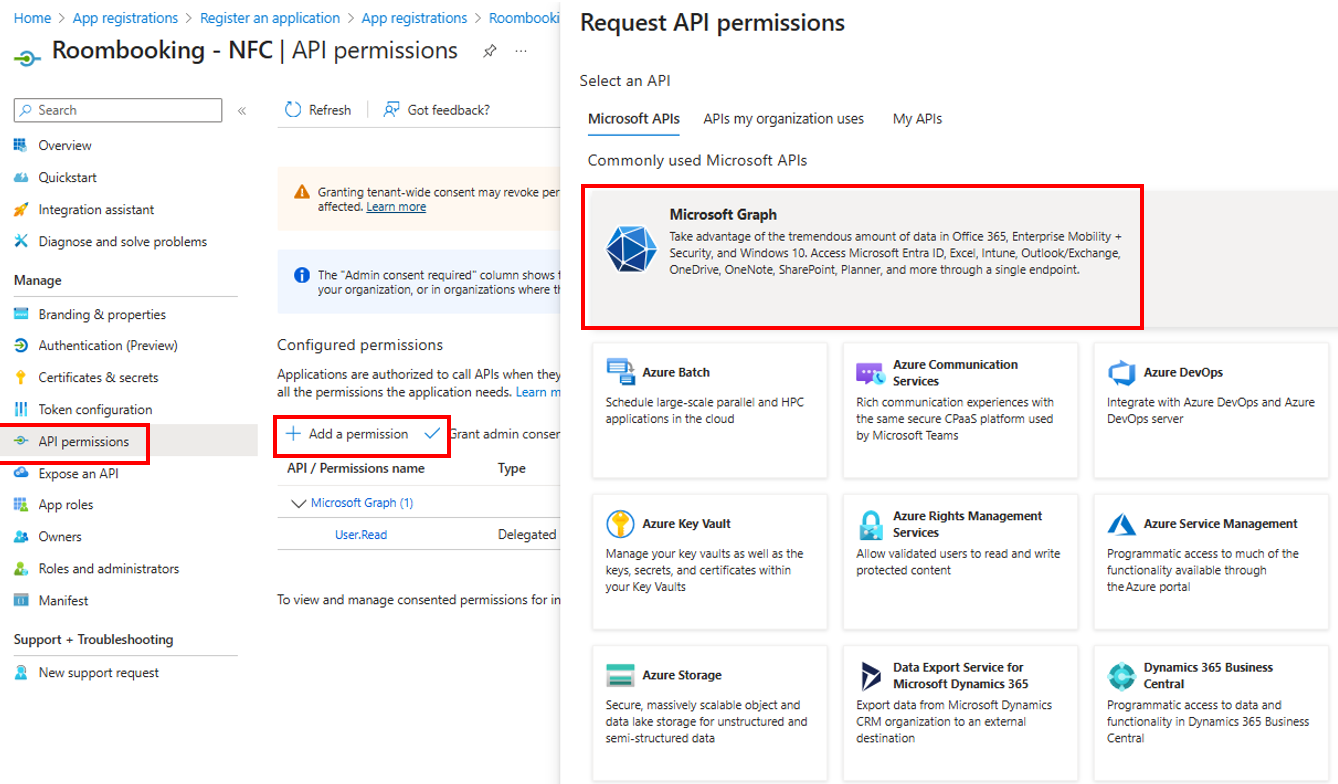
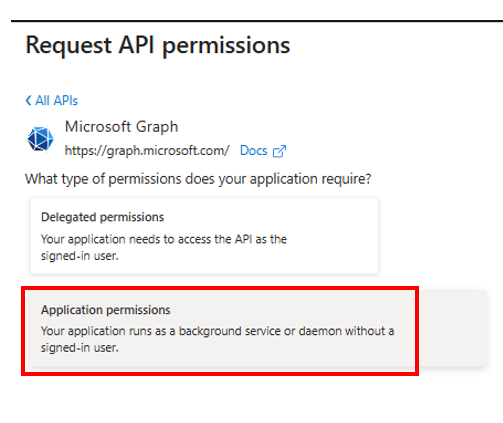
Select Application Permissions
Select “Calendars.ReadWrite” and add permission.
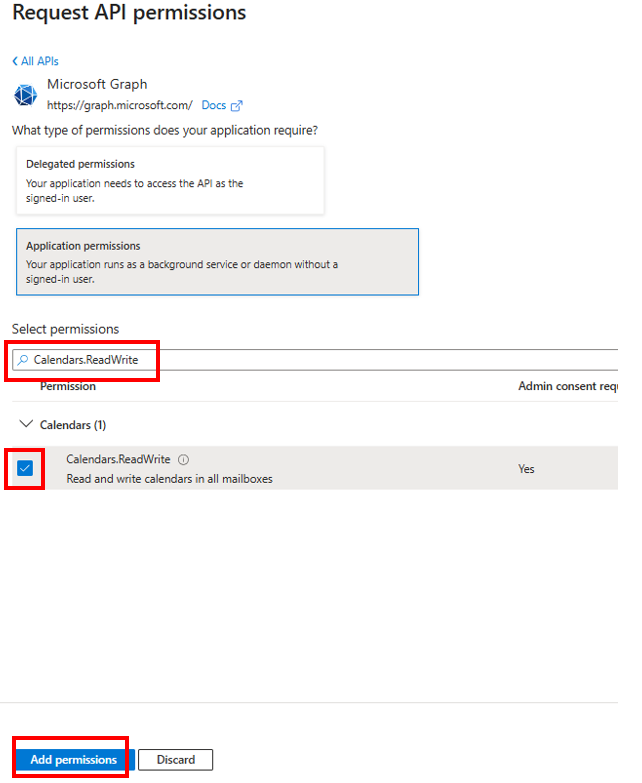
Then grant admin consent for your company.
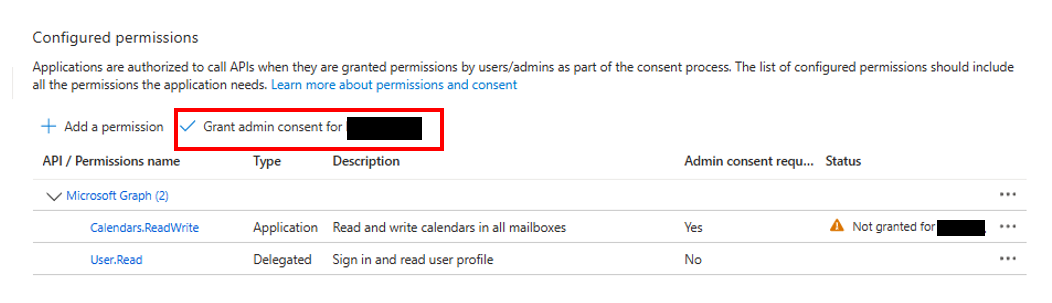
Fill in the values in the NFC settings configuration.
Azure App Client ID: ID for the app you just created.
Azure App Client Secret: Secret created earlier in this guide.
Azure Tenant ID: ID for your Entra ID/MS365 tenant
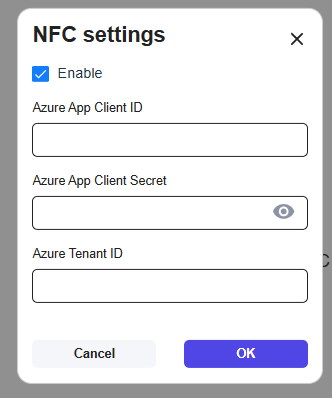
When a user scans their NFC card on the panel for the first time the user will be asked to log in with their MS365 account.
This account information will be associated with the NFC card, so the user will not be asked for credentials again.
NOTE:
Make sure the user does not “save” their login credentials on the panel when registering the card.