
LoopVisit – Configure Teams integration
Here you will find information on how to configure LoopVisit Teams integration
Back
Teams integration enables your users to get Teams notification when a visitor registers their arrival on LoopVisit kiosk.

Step1. Add the LoopVisit Teams notification BOT to your Teams application store.
– Download the Teams app:
https://updates.loopvisit.com/visit/loopvisit_teams_bot.zip
– Add the Teams app
(You must log in with a Global Admin or Teams Admin account)
https://admin.teams.microsoft.com/dashboard
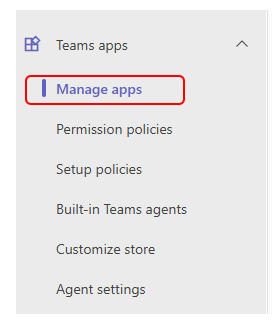
Go to menu “Manage Apps”
Select “Upload a new app”
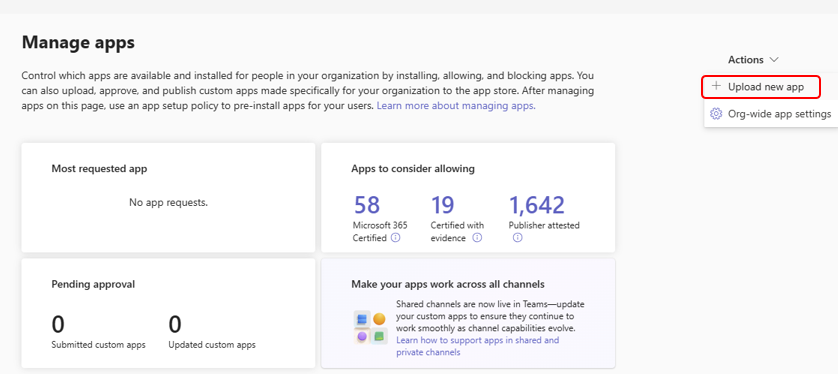
Upload the ZIP file downloaded earlier (The LoopVisit Teams app)
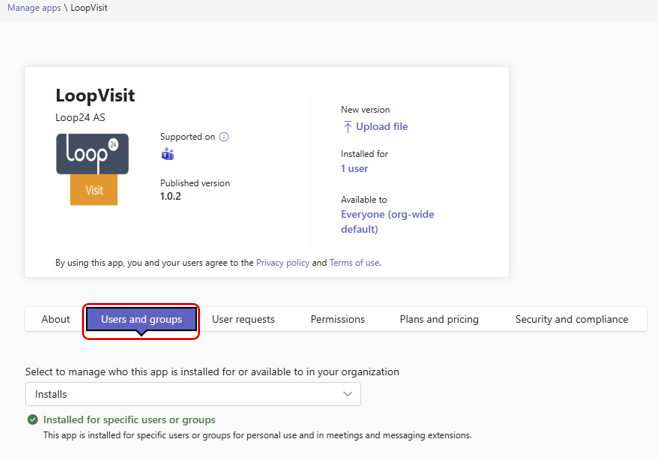
And select to manage the app.
(You might need to search for it in the store – LoopVisit)
Select options for installation and availability.
You can select groups / users that will have the app installed automatically
And you can select to whom the app will be available. (for optional installation)
Please note!, it might take a few hours before the app will
be available for your employees.
Step2. Enable Teams notification in LoopVisit
Open LoopVisit configuration console
https://visit.loopvisit.com
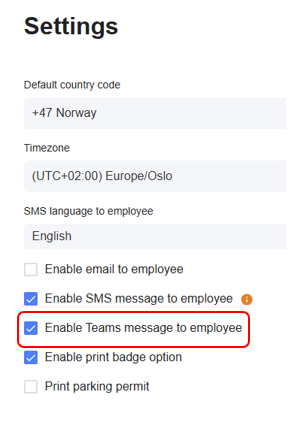
Select Settings, and enable Teams message to employee.
Message will be sendt in same language as selected for SMS to employee.
Please note that if you have custom settings for tenants, the tenants also need to enable this option if they want Teams notifications.
How does your employees add the LoopVisit teams app?
We strongly advise admin to “push” the app to selected users / groups.
However, if your organization have selected that the app is optional,
users can add it themselves.
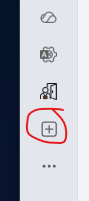
In Teams, press the “+” on the left side menu
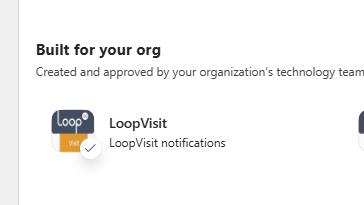
Then user will either see the app, or needs to serach for LoopVisit.
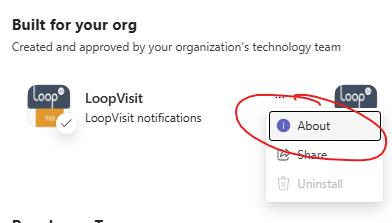
Then select “About”
Then select “Add”
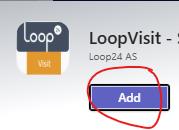
The LoopVisit Teams app is now installed for the user.