LoopVisit MS365 integration
Here you will find information on how to configure MS365 / Entra ID MSgraph integration in LoopVisit
Back

Integration with MS365 can be done in two different ways, all to align with your company security policies.
1. Integrate using a predefined Entra ID enterprise app.
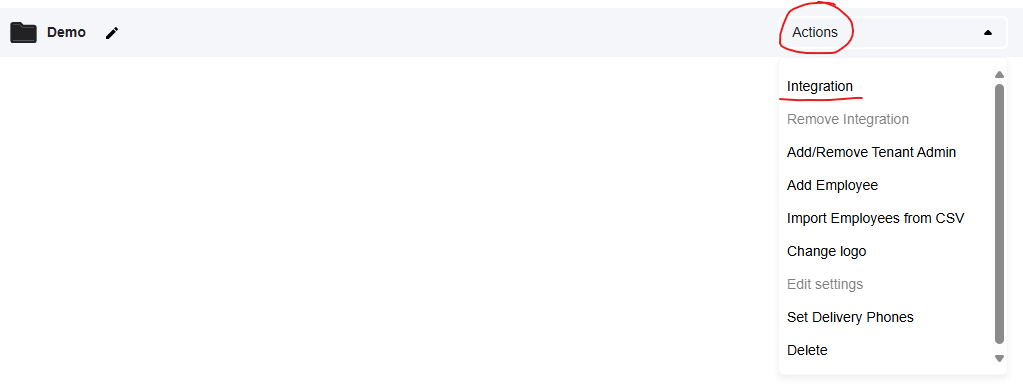
- Log into LoopVisit console with your admin account. https://visit.loopvisit.com
- Under “Actions”, select “Integrations”
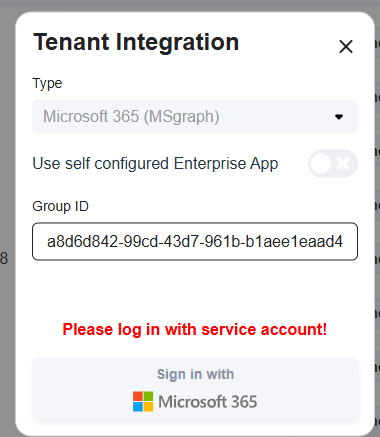
- Enter the Entra group ID to the user group that contains your employees.
P.S – Only employees with registered phone number will be syncronized.
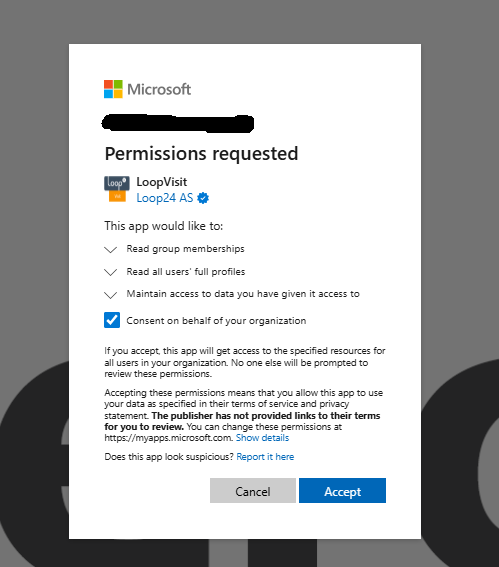
- Log in with a “Global admin account” to register and approve the integration
Recomended:
If you at a later stage like to remove the Global admin account to be the integration account, select “Actions” and “Remove integration” then repeat the process and log in with a dedicated service account.
2. Integrate using self-registered Entra ID enterprise app.
Create the Entra ID app registration
- Go to Entra ID app registration (Make sure you are logged in as “Global Admin”
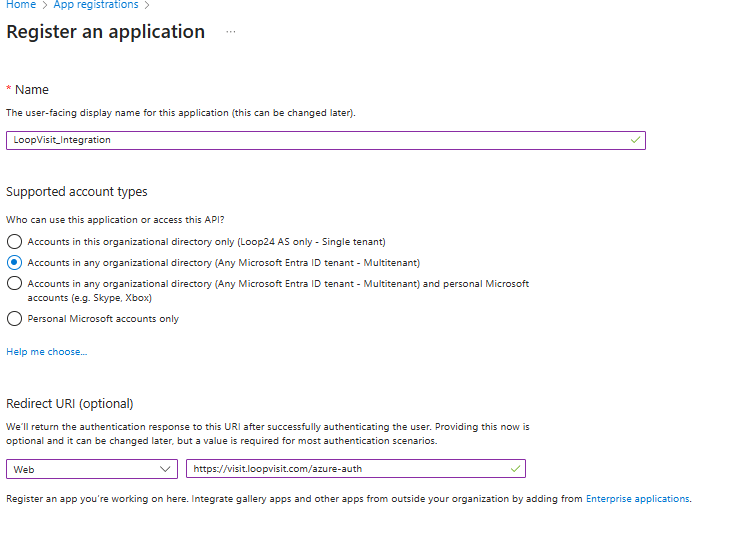
Entra ID App registration - Select “New registration”
- Give the App a name, for example “LoopVisit_Integration”
- Select “Accounts in any organizational directory”
- Enter redirect URI’s Web
- https://visit.loopvisit.com/azure-auth
- Select “Register”
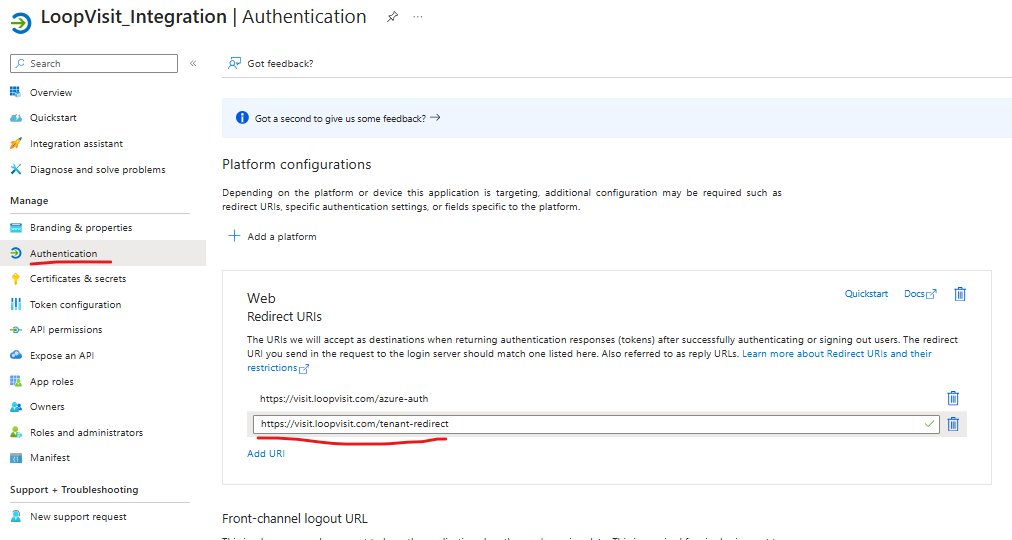
- Select menuitem “Authentication” and add another Web redirect URI
- https://visit.loopvisit.com/tenant-redirect
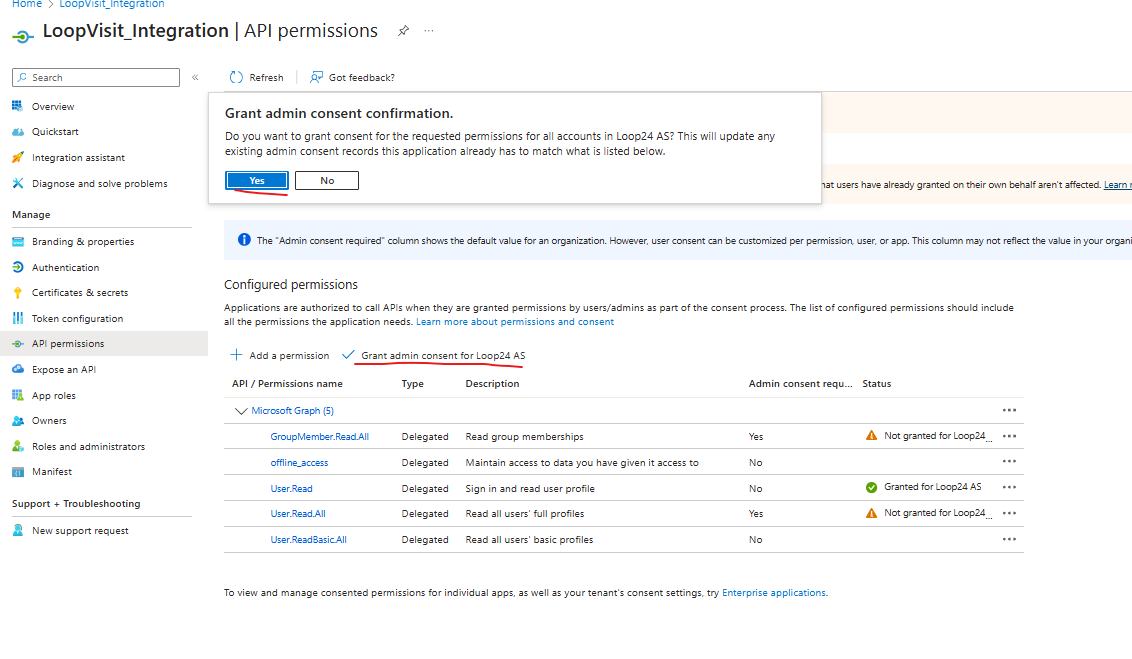
- Select menuitem “API permission”
- Add the following Microsoft Graph delegated permissions
- GroupMember.Read.All
- offline_access
- user.read.all
- user.readbasic.all
- Grant admin consent
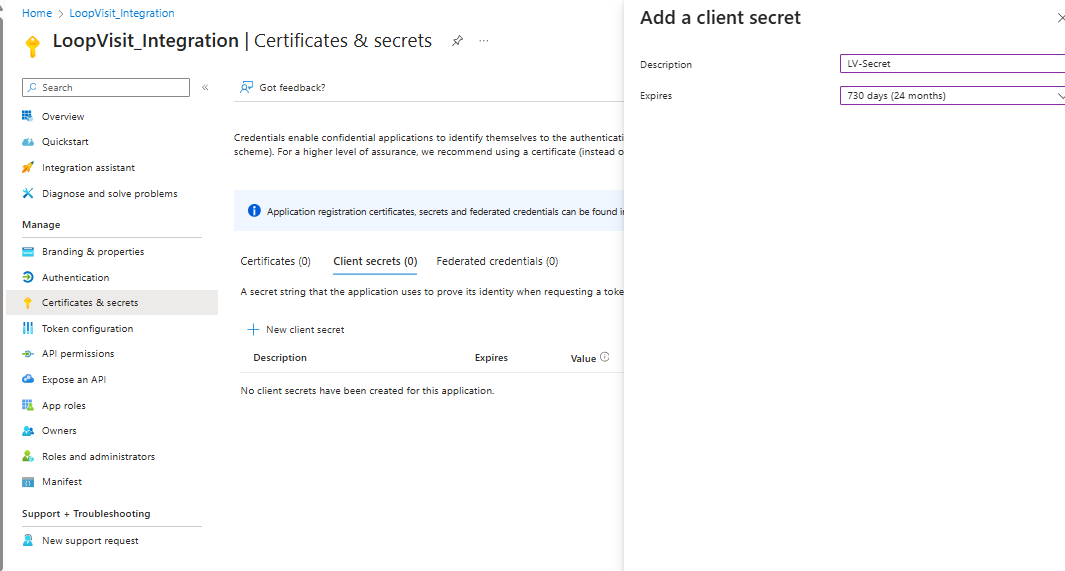
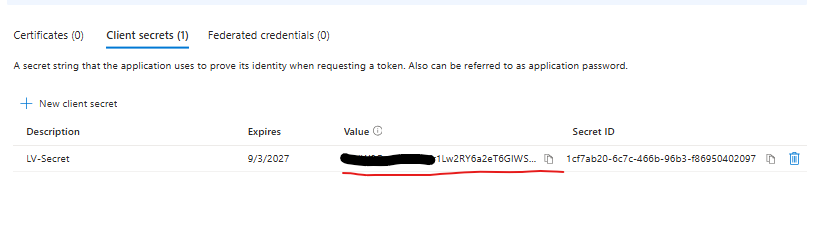
- Select menuitem “Certificates & secrets”
- Select “New client secret”
- Give the secret a description, for example “LV-Secret”
- Select desired expiery (Recomended 24 months)
- Copy the secret value to Notepad, (you will not be able to see it again, and yhis is needed later in this process)
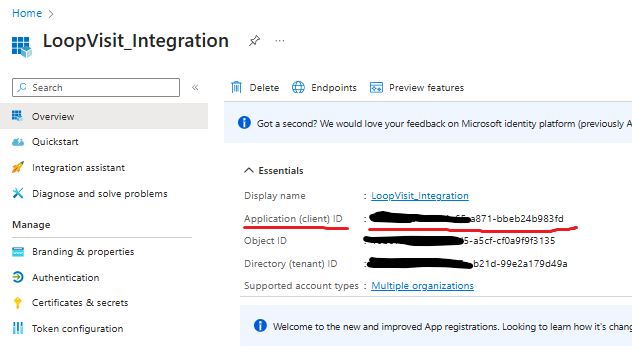
- Select menuitem “Overview” and make a note of the following value.
- Application (client) ID = Client ID
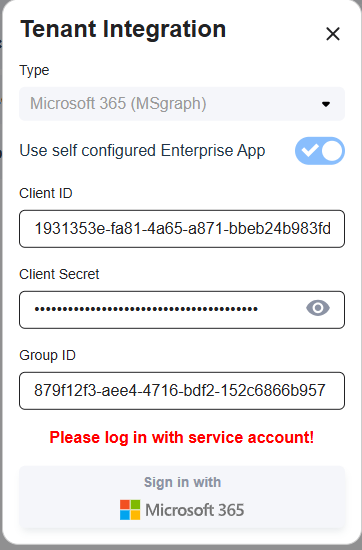
- Go to LoopVisit administration console, and select “Actions” and “Integration”
- Fill in the values needed and log in with “Global Admin”